> For the complete documentation index, see [llms.txt](https://docs.terrace.fi/llms.txt). Markdown versions of documentation pages are available by appending `.md` to page URLs; this page is available as [Markdown](https://docs.terrace.fi/how-to-guides/how-to-reset-your-password.md).
# How to Reset Your Password
1. Go to the login page on the Terrace website and click forgot password in the lower right corner.
2. Enter the email that you used to create your Terrace account. After doing so, you will be taken to a screen with directions to check your email.
3. You should receive an email to reset your password. Click the link in the email for next steps. Please note that the link to reset your password will expire in 10 minutes.
4. Depending on if you have 2FA set up, you may have to complete an authentication before you can reset your password.
5. Enter and confirm your new password.
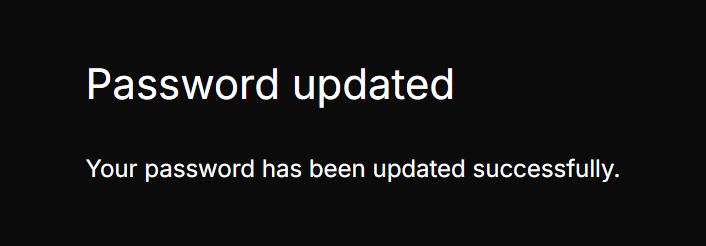
6. Once you click submit, you will be shown a confirmation that your password has been successfully updated.
7. Navigate back to the sign in page and use your new password to log in to your account.