> For the complete documentation index, see [llms.txt](https://docs.terrace.fi/llms.txt). Markdown versions of documentation pages are available by appending `.md` to page URLs; this page is available as [Markdown](https://docs.terrace.fi/how-to-guides/how-to-transfer-funds-from-coinbase.md).
# How to Transfer Funds From Coinbase
In order to deposit funds on Terrace, you must first locate your deposit address on Terrace. See [How to Deposit Crypto on Terrace](/how-to-guides/how-to-deposit-crypto-on-terrace.md) for instructions on how to find your deposit address.
Please double check that you are sending funds on correct network to the correct address. We recommend doing a $10 test before sending the full amount to your Terrace account to ensure everything is correct.
### Coinbase App
1. Open the Coinbase app.
2. Scroll down to where it says crypto.
3. Click on the asset that you would like to transfer to Terrace.
4. Click the transfer button at the bottom of the page.
6. Select send crypto.
7. If you have not already added a withdrawal address from Terrace, you will be prompted to do so. See [How to Deposit Crypto on Terrace](/how-to-guides/how-to-deposit-crypto-on-terrace.md) for instruction on how to find your withdrawal address within Terrace.
8. Select which network you would like to send funds on - make sure this is the same network that you selected in Terrace.
9. Type in the amount you would like to send.
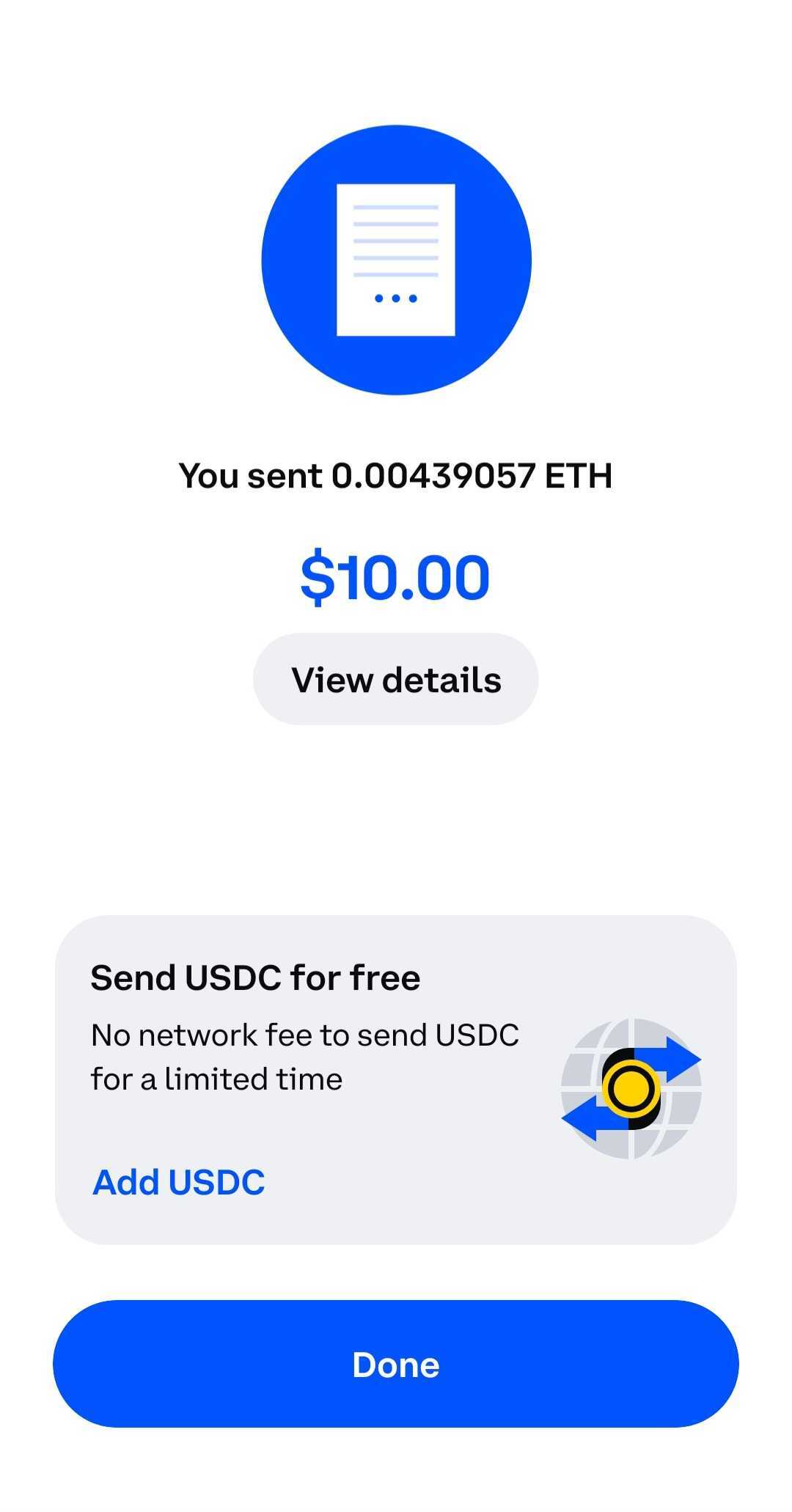
10. Once you confirm the details of your trade, Coinbase will let you know that your withdrawal has been initiated.
11. You will receive an email from Terrace once your deposit has been confirmed.
### Coinbase Website
1. Login to your Coinbase account and navigate to the home page.
1. Scroll down on the home page and select send crypto.
1. Enter in the deposit address you copied from the Terrace website.
Select the blockchain (referred to as network on the Coinbase site) for the transfer. This should be the same chain you selected on the Terrace website when selecting your deposit address.
5. Enter the amount you would like to transfer to Terrace.
6. Review and confirm the transfer details.
7. You will receive an email from Terrace confirming that the transfer was successful.